Install & first win
Follow these seven steps to get ACO live on your storefront.
Use this guide to complete your first session and publish your first ACO surface.
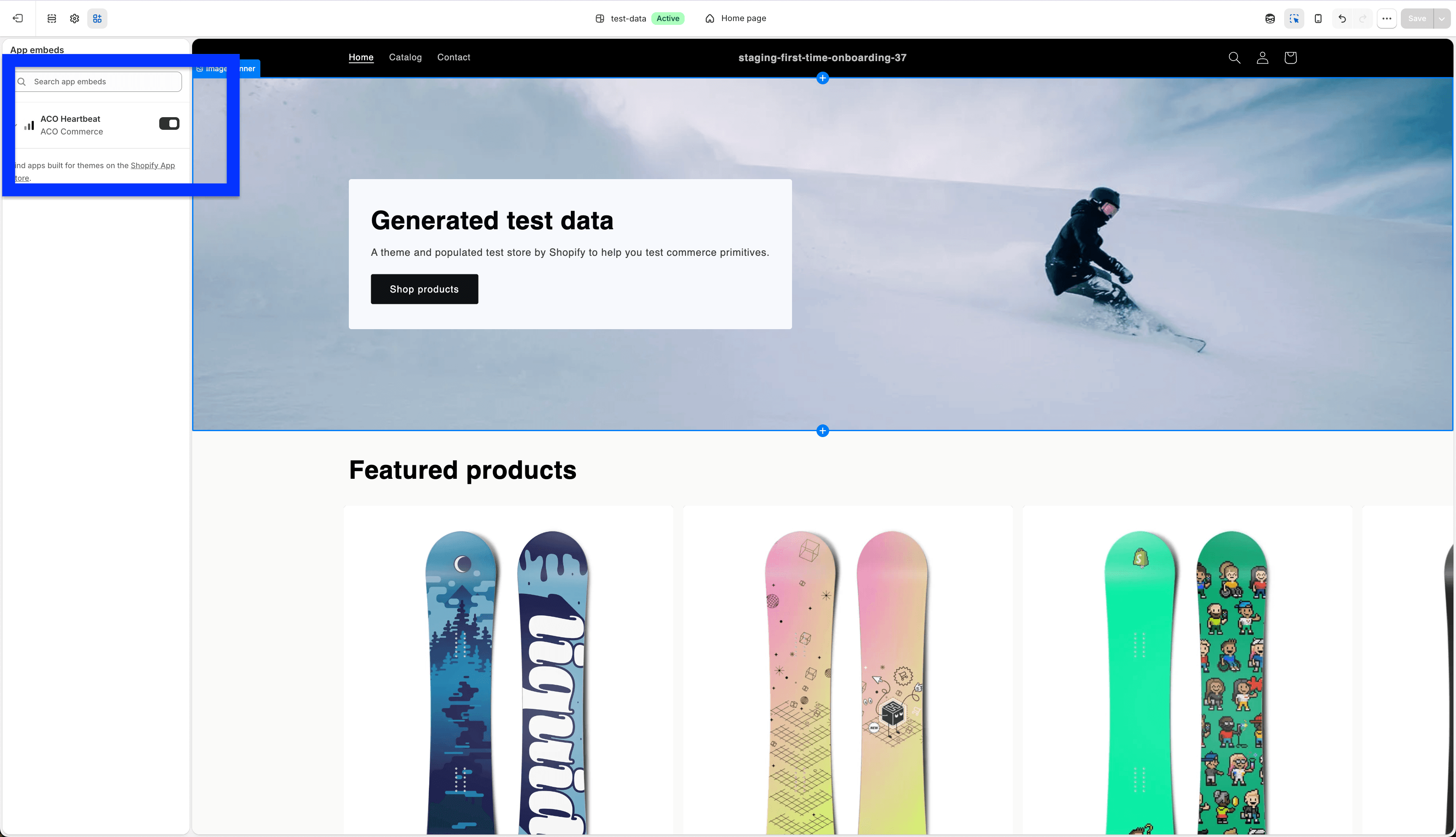
Step 1 — Enable ACO Heartbeat
Enable the ACO Heartbeat SDK on your store.
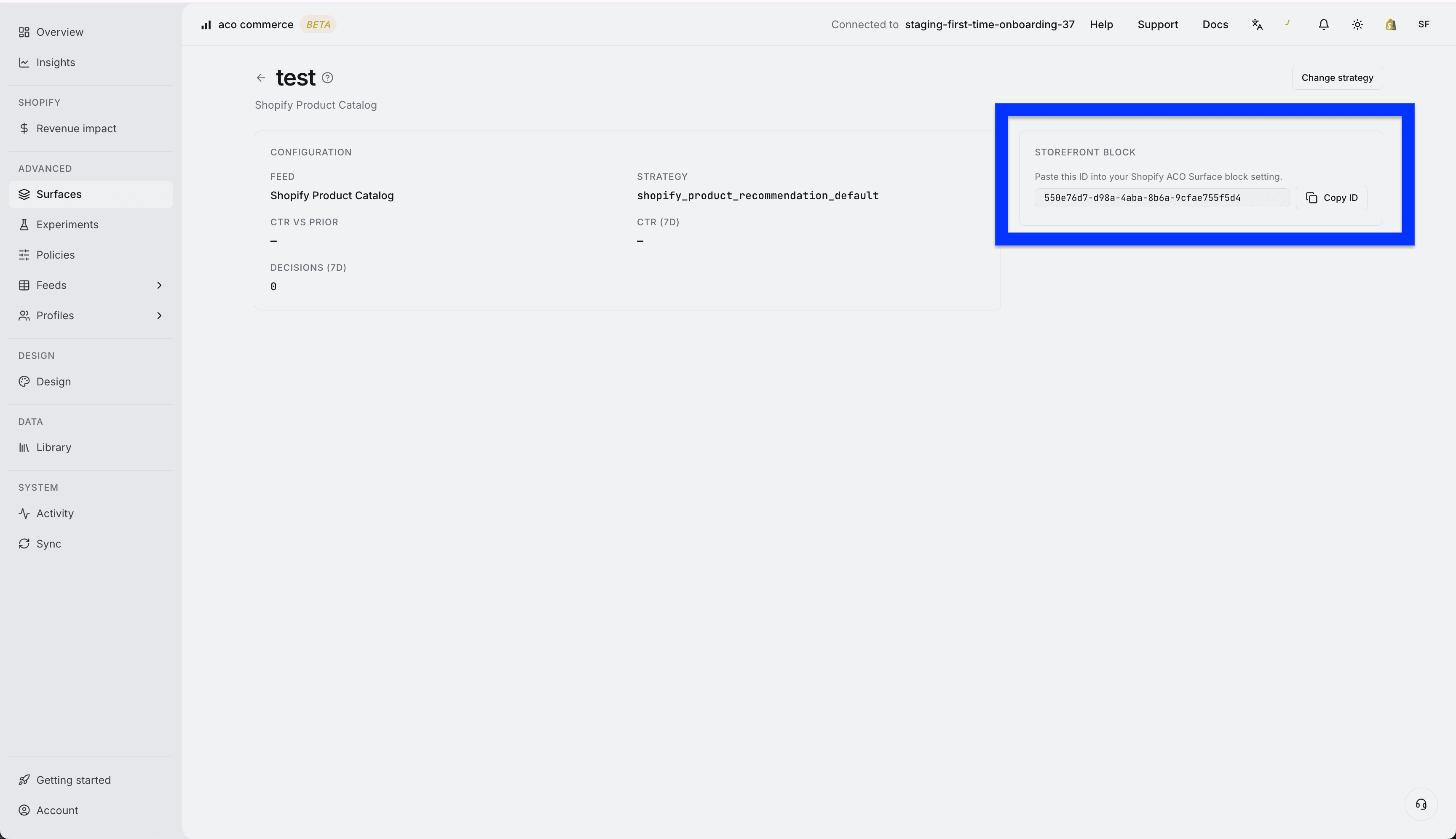
Step 2 — Create a surface
Create a new surface in ACO and copy its Surface ID.
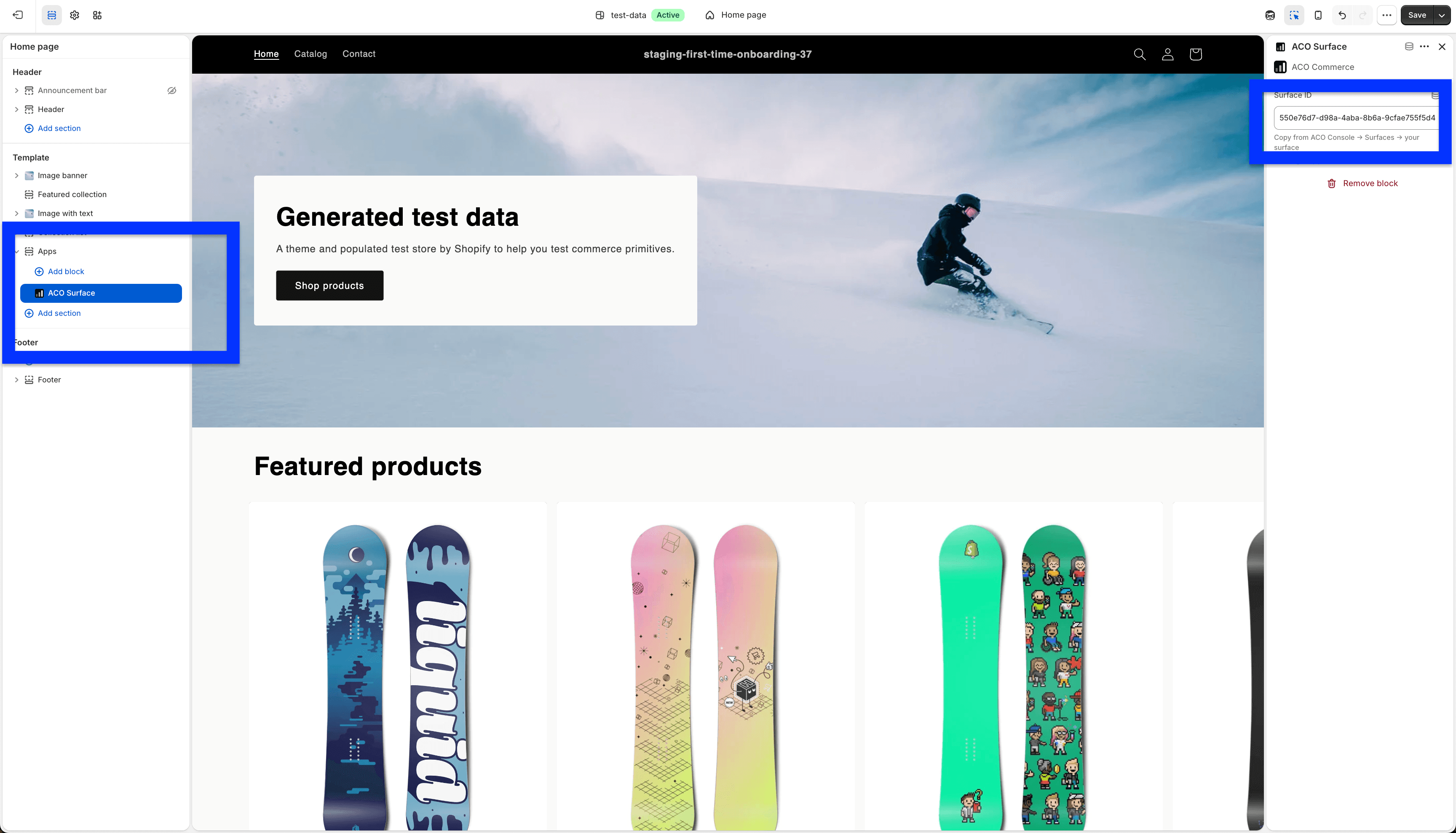
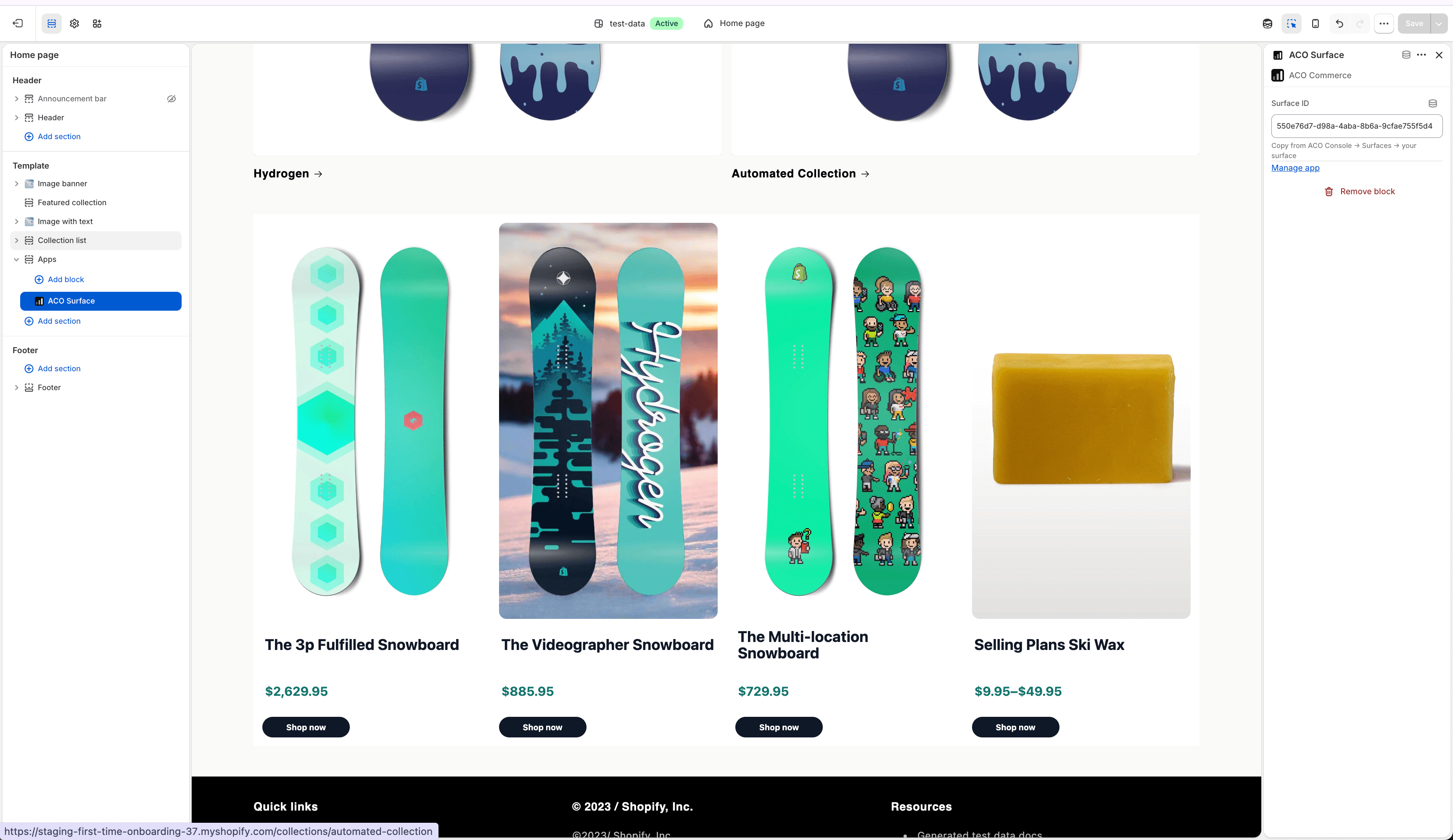
Step 3 — Add the Surface ID
Open the ACO Surface block and enter the Surface ID you copied.
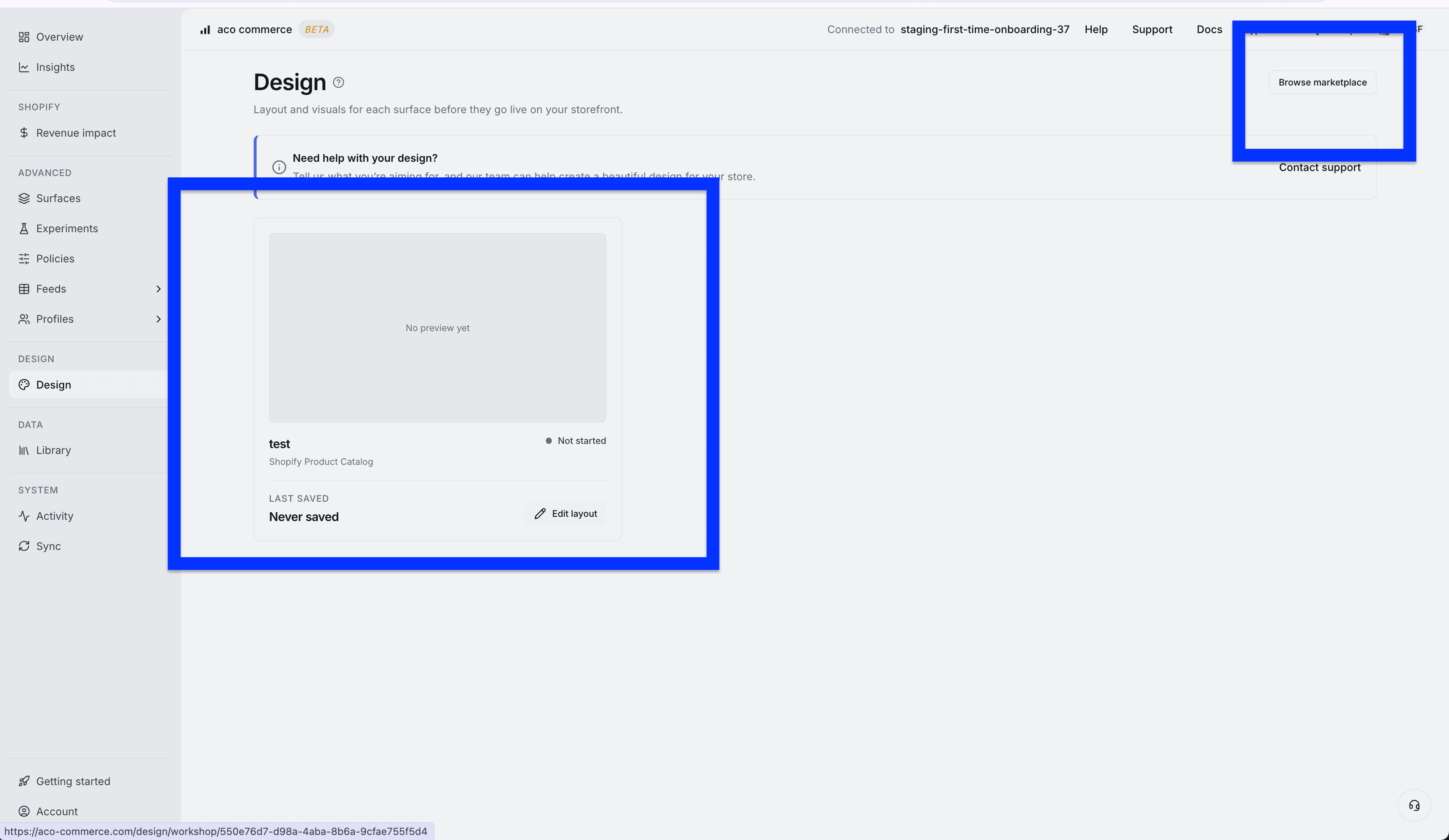
Step 4 — Choose how you want to design it
Head to Design and choose one of the following:
- Browse and use a template
- Reach out to us and we'll help design your surface
- Open the Workshop to design it yourself
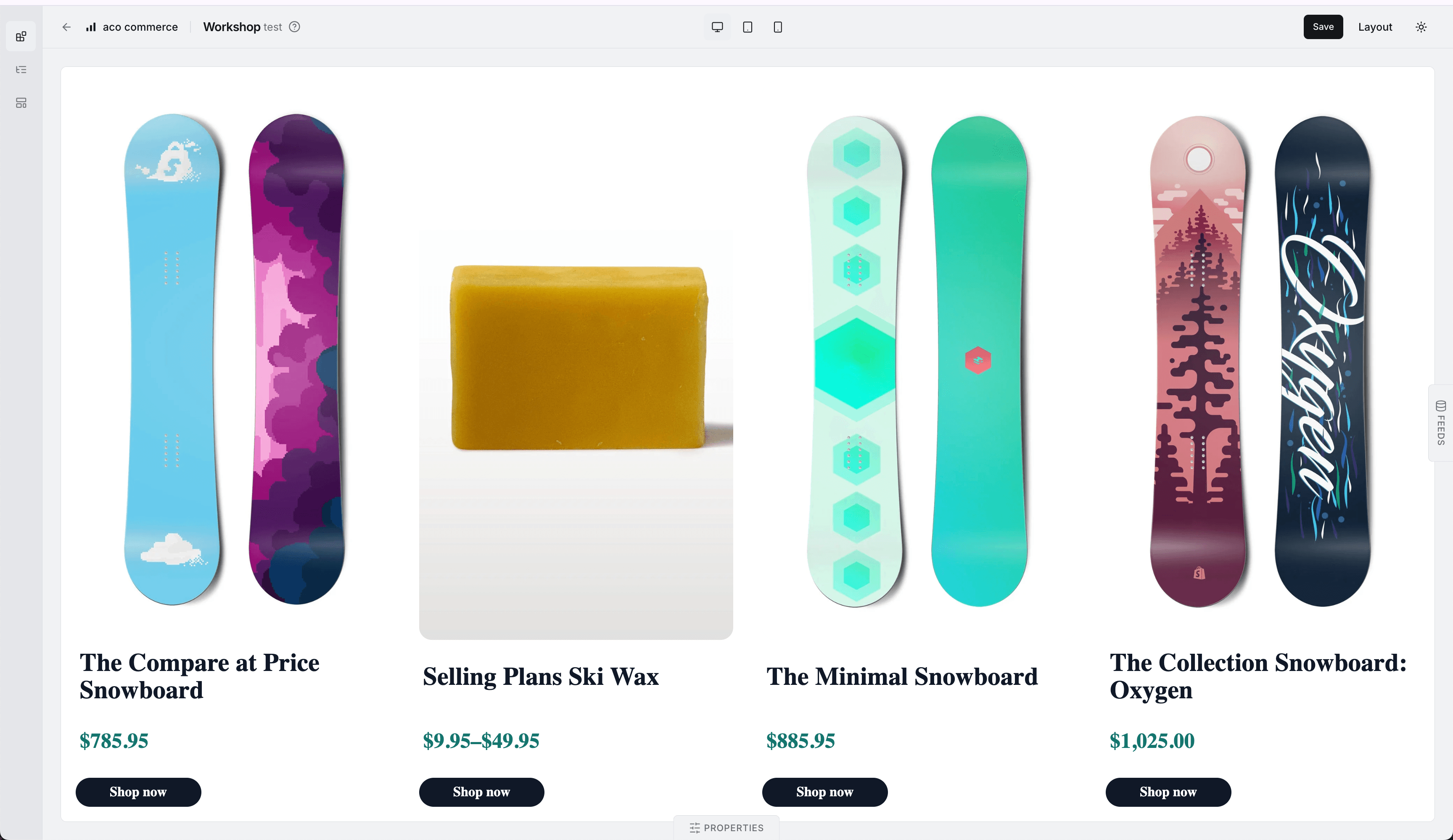
Step 5 — Design and save
Customize your surface and click Save when you're happy with it.
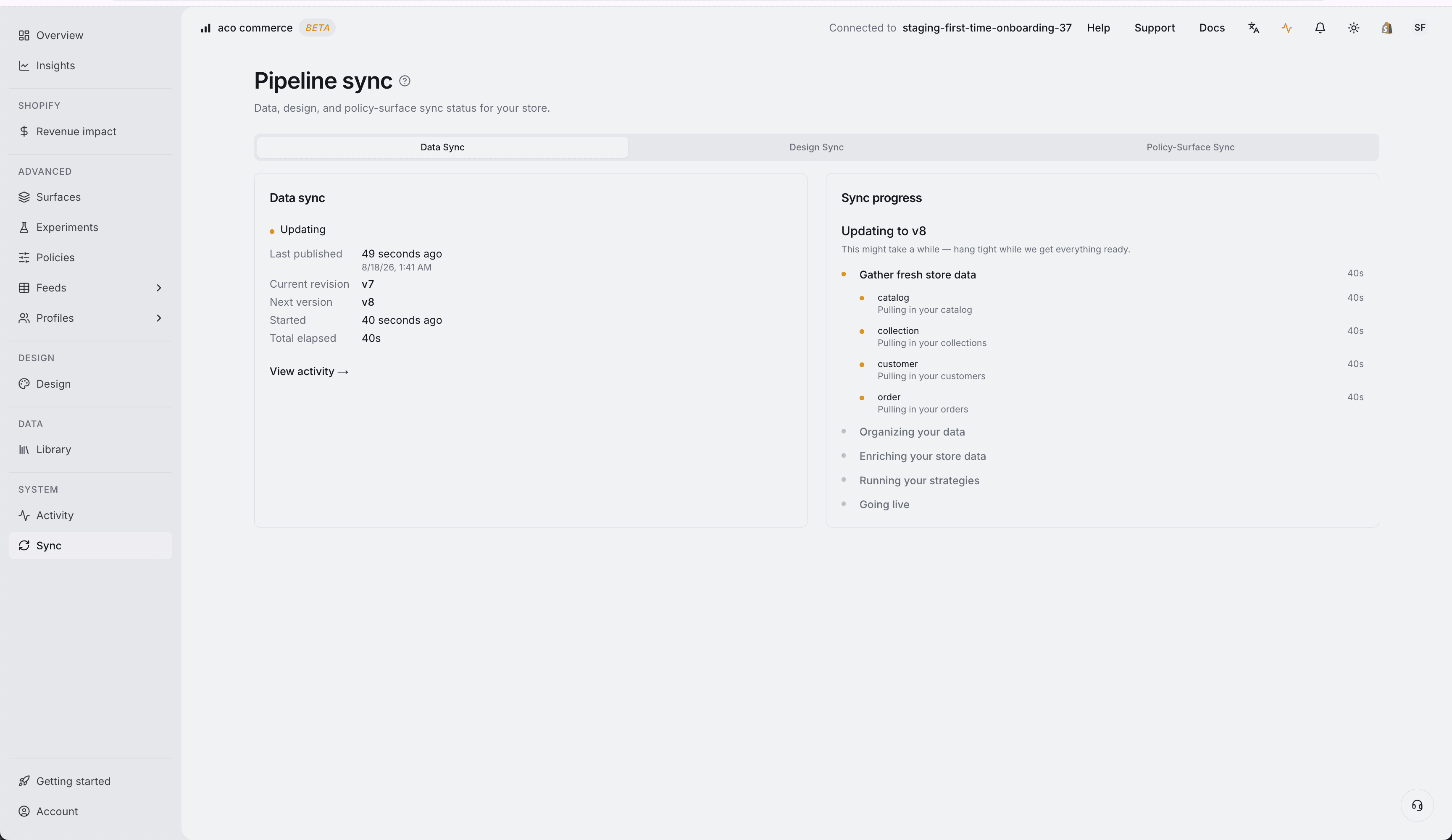
Step 6 — Wait for synchronization
Wait for all three syncs to complete. This ensures your surface and its data are ready to go.
Step 7 — View it on your storefront
Head to your storefront and reload the page. Your ACO surface should now be live.
Last updated: July 2026